

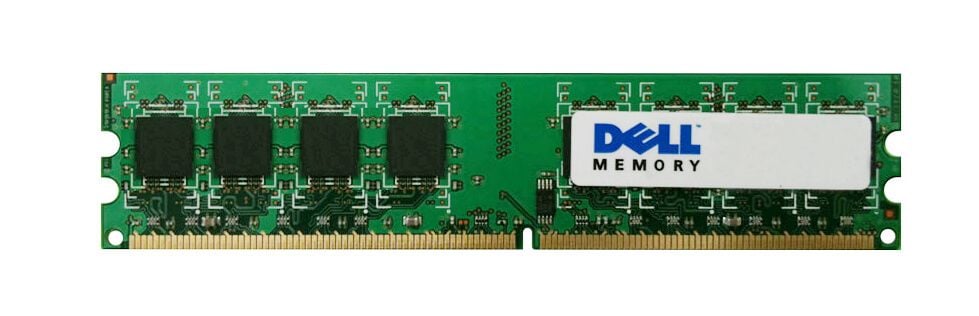

Description
Advantages of high-speed RAM
High-speed RAM, such as the Dell 370-ABYY 16GB 2133MHz PC4-17000 ECC DDR4 SDRAM Reg RAM, offers several advantages over lower-speed RAM, including:
- Faster data transfer rates: High-speed RAM can transfer data to and from the CPU more quickly than lower-speed RAM. This can result in faster application load times, faster data processing, and improved system responsiveness.
- Improved multitasking: High-speed RAM can improve system performance when running multiple applications simultaneously. With more data being transferred to and from the CPU at faster speeds, the system can handle more data-intensive tasks without slowing down.
- Better gaming performance: Many modern games require high-speed RAM to run at their best. High-speed RAM can provide faster data transfer rates, reducing the load times for games and improving overall gaming performance.
- Enhanced video and image processing: High-speed RAM can improve the performance of video and image processing applications, allowing for faster rendering times and more efficient editing workflows.
- Overclocking potential: High-speed RAM modules often have more headroom for overclocking than lower-speed modules. Overclocking can further increase data transfer rates and improve system performance.
Troubleshooting common RAM issues
Here are some common RAM issues that users may encounter and troubleshooting steps to resolve them:
- System crashes or freezes: This can be caused by a faulty RAM module or incorrect RAM configuration. To troubleshoot, remove the RAM module(s) one at a time and try restarting the system after each removal. If the system starts up normally after removing a specific module, that module is likely faulty and needs to be replaced. If removing a module does not solve the issue, check the RAM configuration and ensure it is compatible with the motherboard and other hardware components.
- Blue screen of death (BSOD) errors: This can be caused by a variety of issues, including faulty RAM modules, incorrect RAM configuration, or software conflicts. To troubleshoot, run a memory diagnostic test to identify any faulty modules. Check the RAM configuration and ensure it is compatible with the motherboard and other hardware components. If the issue persists, try booting the system in safe mode to identify any software conflicts.
- Slow system performance: This can be caused by insufficient RAM or a bottleneck in the system. To troubleshoot, check the system’s RAM usage and upgrade the RAM if necessary. Check the CPU and storage usage to identify any bottlenecks that may be impacting system performance.
- System not recognizing RAM: This can be caused by faulty RAM modules, incorrect RAM configuration, or a compatibility issue. To troubleshoot, check the RAM configuration and ensure it is compatible with the motherboard and other hardware components. Remove and reseat the RAM modules to ensure they are properly connected. If the issue persists, try using the RAM module(s) in another system to identify any compatibility issues.
- Random errors or data corruption: This can be caused by faulty RAM modules or incorrect RAM configuration. To troubleshoot, run a memory diagnostic test to identify any faulty modules. Check the RAM configuration and ensure it is compatible with the motherboard and other hardware components.
In general, troubleshooting RAM issues involves identifying the root cause of the problem and taking appropriate steps to resolve it. This may involve replacing faulty RAM modules, configuring the RAM correctly, or identifying and resolving software or hardware conflicts. If in doubt, consult a qualified technician or seek help from the manufacturer.
Optimizing RAM performance
Here are some tips to optimize RAM performance:
- Upgrade to faster RAM: Upgrading to faster RAM, such as the Dell 370-ABYY 16GB 2133MHz PC4-17000 ECC DDR4 SDRAM Reg RAM, can provide faster data transfer rates and improve overall system performance.
- Install more RAM: Adding more RAM to a system can improve multitasking performance and allow for more data-intensive applications to run smoothly.
- Close unnecessary programs: Running too many programs at once can consume RAM and slow down system performance. Close any unnecessary programs or background processes to free up memory resources.
- Disable startup programs: Some programs may be configured to start automatically when the system boots up, consuming valuable RAM resources. Disable any unnecessary startup programs to free up memory resources.
- Use a memory optimizer tool: There are various software tools available that can optimize RAM usage and improve system performance. These tools can help identify programs and processes that are consuming too much memory and free up memory resources.
- Check for malware: Malware infections can consume valuable system resources, including RAM. Run a malware scan to ensure the system is free from infections.
- Update system drivers: Outdated system drivers can cause compatibility issues and impact system performance, including RAM performance. Check for updates to system drivers and install any available updates.
By following these tips, users can optimize RAM performance and improve overall system performance. However, it is important to note that optimizing RAM performance is just one aspect of improving system performance, and other hardware components such as the CPU and storage should also be considered when optimizing system performance.
General information
- Manufacturer: Dell
- Manufacturer part number: 370-ABYY
- Type: Memory (RAM)
- Sub-Type: PC4-17000
- Product name: 16gb ddr4 sdram memory module
Technical information
- Storage capacity: 16gb
- Memory technology: ddr4 sdram
- Number of modules: 1 x 16gb
- Chips organization: X4
- Bus speed: 2133mhz ddr4-2133/pc4-17000
- Data integrity check: ECC
- Signal processing: registered
- Cas latency timings: Cl15
- Rank features: 2rx4
- Voltage: 1.2v
- Upgrade type: system specific


