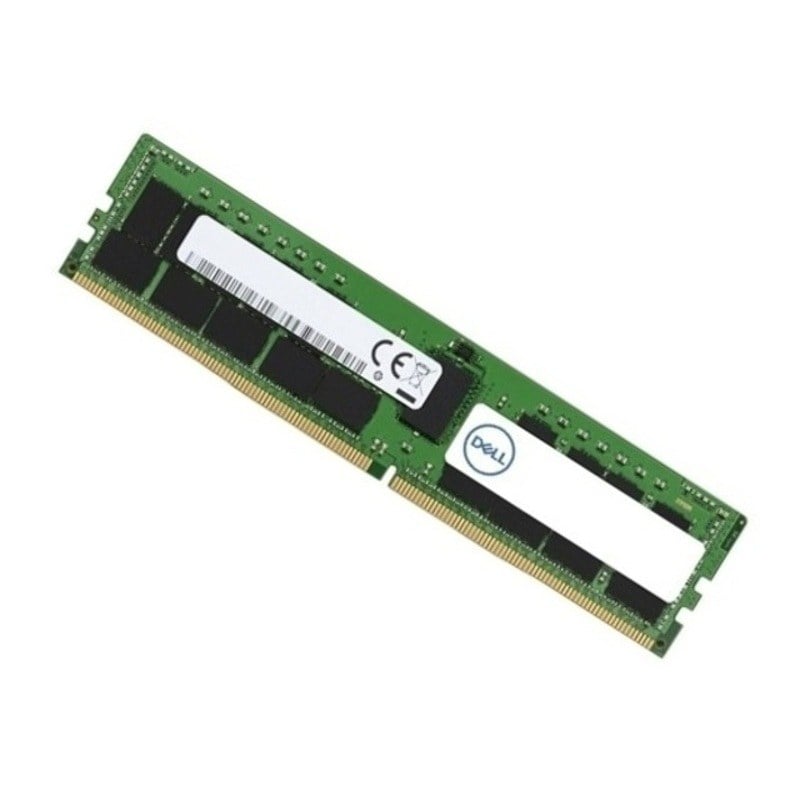


Description
Conclusion and Final Thoughts on 370-AGGW 512GB (4X128GB) Memory
370-AGGW 512GB (4X128GB) memory is a high-capacity memory option for Dell PCs that can provide significant benefits in terms of system performance, multitasking capabilities, and power efficiency. The additional memory capacity can allow for more programs and data to be stored in memory, reducing the need for the system to access the slower storage devices, which can provide a noticeable improvement in system responsiveness.
It’s important to check the compatibility of 370-AGGW 512GB (4X128GB) memory with your specific Dell PC model before purchasing and installing it. It’s also important to consult the user manual and Dell’s website for detailed instructions on how to install the memory in your Dell PC.
In conclusion, upgrading to 370-AGGW 512GB (4X128GB) memory can be a great way to improve the performance and responsiveness of your Dell PC. With its high-capacity, it can handle heavy workloads and multitasking, and it’s power-efficient, which can lead to longer battery life. It can also provide a better overall user experience, whether for gaming, productivity or professional applications.
Upgrading to 370-AGGW 512GB (4X128GB) Memory
Upgrading to 370-AGGW 512GB (4X128GB) memory can provide a significant improvement in the performance and responsiveness of your Dell PC. The additional memory capacity can allow for more programs and data to be stored in memory, reducing the need for the system to access the slower storage devices.
Before upgrading to 370-AGGW 512GB (4X128GB) memory, it is important to ensure that your Dell PC is compatible with the memory module. This can be done by checking the memory specifications, the number of memory slots, and the maximum memory capacity of your Dell PC. You can also refer to the memory compatibility list provided by Dell for your specific PC model.
Once you have confirmed compatibility, you can proceed with the upgrade process. Here are the general steps for upgrading to 370-AGGW 512GB (4X128GB) memory:
- Turn off the PC: Before installing memory, ensure that the PC is turned off and unplugged from the power outlet.
- Open the PC: Depending on the PC model, you may need to remove the side panel or access panel to get to the memory slots. Refer to the user manual for specific instructions on how to open the PC.
- Locate the memory slots: Once the PC is open, locate the memory slots on the motherboard. They are typically located near the CPU and are labeled as DIMM or RAM.
- Check the memory configuration: Check the current memory configuration, how many memory slots are available, and how many memory modules are already installed.
- Release the tabs on the memory slots: On the side of the memory slot, there will be a small white or black tab, release the tabs on the memory slot to make it easier to insert the memory module.
- Insert the memory modules: Carefully align the notches on the memory modules with the notches in the memory slots. Gently press down on the memory module until it clicks into place. Repeat this process for all 4 memory modules.
- Close the PC: Once all the memory modules have been installed, close the PC and reconnect the power cord.
- Turn on the PC: Turn on the PC and check the memory configuration in the BIOS or UEFI firmware settings to ensure that the new memory is recognized and functioning properly.
- Check the memory details: Once the PC has booted, check the memory details in the operating system, ensure that the new memory is recognized and the memory size is correct.
Tips for Optimizing 370-AGGW 512GB (4X128GB) Memory Performance
Here are some tips for optimizing the performance of 370-AGGW 512GB (4X128GB) memory in your Dell PC:
- Run the latest BIOS version: Make sure that you are running the latest BIOS version for your Dell PC, as it may contain updates that improve memory compatibility and performance.
- Monitor memory usage: Keep an eye on the memory usage of your PC, if you notice that the memory usage is high and the PC is slowing down, you may need to close some unnecessary programs or apps.
- Use memory-optimized software: Use software that is optimized for high-performance memory, such as video editing or 3D rendering software.
- Disable unnecessary background processes: Disable background processes that you don’t need, such as anti-virus software, to free up memory resources.
- Keep the PC clean: Keep the PC clean and dust-free, as dust can accumulate inside the PC and affect the memory performance.
- Overclock the memory: Overclocking the memory can provide a performance boost, but it is important to ensure that the memory is stable and compatible with the motherboard.
- Use the XMP profile: XMP (Extreme Memory Profile) is a feature that allows you to set the memory to run at a higher speed than the default settings, it’s a good idea to check the motherboard manual if you are able to use it.
- Use a RAM disk: A RAM disk is a virtual disk that uses memory as storage, it can provide faster access to data and improve the performance of certain applications.
- Check the memory timings: Memory timings can affect the performance, and it’s a good idea to check the memory timings and adjust them to the optimal settings.
- Keep the OS and drivers up to date: Keep the operating system and drivers up to date to ensure that the memory is being used to its full potential.
General Information
- Brand Name: Dell
- MPN: 370-AGGW
- Type: Memory (RAM)
- RAM Type: Pc4-23400
- Product Name: 512GB DDR4 SDRAM Memory Module
- SKU: 370-AGGW
Technical Information
- Storage Capacity: 512GB
- Memory Technology: DDR4 SDRAM
- Number Of Modules: 4 X 128GB
- Bus Speed: 2933mhz DDR4-23400/PC4-2933
- Data Integrity Check: Ecc
- Signal Processing: Registered
- Cas Latency Timings: Cl21
- Rank Features: Quad Rank X4
- Form Factor: 288-pin Lrdimm
Physical Characteristics
- Dimensions (W X D X H) : 8.89 X 19.81 X 1.91 Cm (3.5 X 7.8 X 0.75 In)
- Weight: 0.45 Kg (1 Lb)