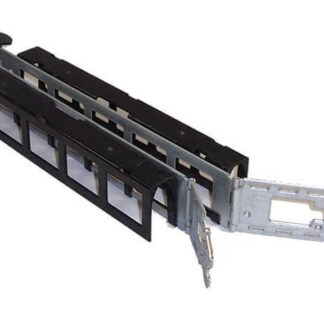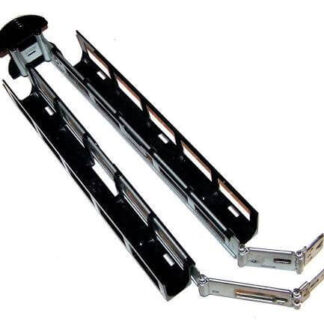


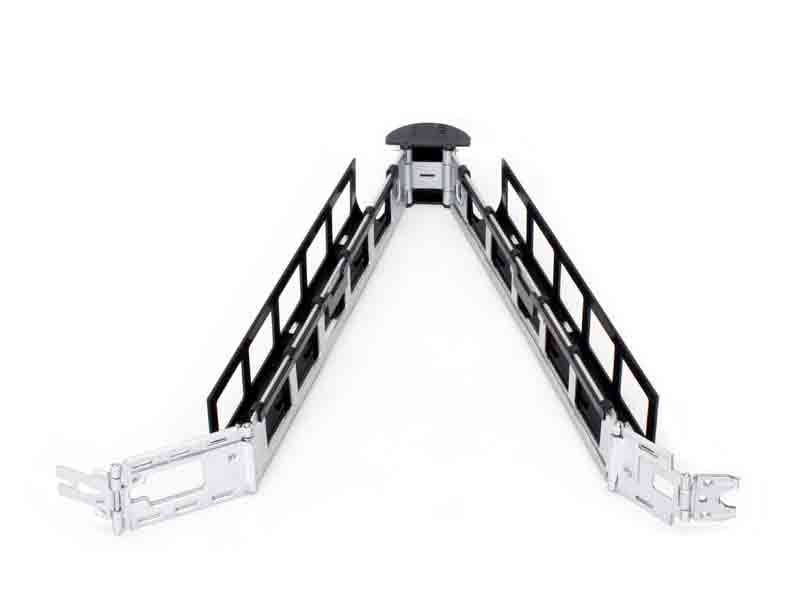

Description
Configuring and Managing Virtual Machines
Configuring and managing virtual machines using the 595851-002 HP CMA for Proliant DL380 G6 is a straightforward process. The CMA provides an intuitive web-based management interface that allows you to create, configure, and manage virtual machines with ease.
- Creating a new virtual machine: To create a new virtual machine, launch the CMA management console and navigate to the “Virtual Machines” tab. Click on the “New” button to open the “New Virtual Machine” wizard. Follow the on-screen instructions to configure the virtual machine, including setting the number of virtual processors, memory, and disk space.
- Configuring virtual machine settings: Once a virtual machine is created, you can configure its settings by navigating to the “Virtual Machines” tab in the CMA management console. Here you can adjust settings such as the number of virtual processors, memory, and disk space. You can also configure network settings, such as IP addresses and virtual networks.
- Installing an operating system: After the virtual machine is created, you can install the operating system. You can do this by using the CMA management console or by using a virtual machine management tool such as VMware vSphere.
- Installing applications: Once the operating system is installed, you can install any necessary applications on the virtual machine.
- Starting and stopping virtual machines: You can start and stop virtual machines from the CMA management console. Navigate to the “Virtual Machines” tab, select the virtual machine you want to start or stop, and click on the “Start” or “Stop” button.
- Monitoring virtual machines: The CMA management console provides various monitoring features that allow you to monitor the performance of virtual machines in real-time.
- Backup: The CMA allows you to backup virtual machines and restore them in case of an emergency.
- Moving virtual machines: The CMA allows you to move virtual machines between physical servers, providing a high degree of flexibility.
Managing virtual machines using the 595851-002 CMA is simple and easy, allowing you to focus on running your business. It’s important to always keep the virtual machines updated and to monitor their performance, this will help you to avoid any unexpected issues.
Compatibility and System Requirements
Compatibility refers to the ability of the 595851-002 HP CMA for Proliant DL380 G6 to work seamlessly with other hardware and software components in a given system. In order for the CMA to function properly, certain system requirements must be met. These requirements include:
- Server: The 595851-002 CMA is designed to work with the HP Proliant DL380 G6 server. It may not be compatible with other server models or brands.
- Operating system: The CMA is designed to work with the Windows Server 2008 R2 or 2012 R2 operating systems. Other operating systems may not be supported.
- Memory: The CMA requires a minimum of 8GB of memory in order to function properly.
- Processor: The CMA requires a minimum of two 2.4GHz processors in order to function properly.
- Storage: The CMA requires a minimum of 100GB of storage space in order to function properly.
- Networking: The CMA requires a minimum of two NICs (network interface cards) in order to function properly.
It is important to ensure that your system meets these requirements before installing the 595851-002 CMA in order to ensure proper functionality and avoid any potential issues.
Troubleshooting and Resolving
Troubleshooting and resolving common issues with the 595851-002 HP CMA for Proliant DL380 G6 can be a straightforward process if you follow the appropriate steps. Here are some common issues that may arise and steps you can take to resolve them:
- Virtual machines not starting: If virtual machines are not starting, it could be due to a lack of resources or a configuration issue. To resolve this, check the resource allocation for the virtual machines and ensure that they have enough memory, disk space, and CPU resources.
- Slow performance: If the performance of the virtual machines is slow, it could be due to a lack of resources or a network issue. To resolve this, check the resource allocation for the virtual machines, and also check the network settings to ensure that they are configured correctly.
- Network connectivity issues: If the virtual machines are experiencing network connectivity issues, it could be due to a configuration issue or a problem with the network hardware. To resolve this, check the network settings and ensure that the virtual machines are configured correctly, and also check the network hardware to ensure that it is working properly.
- Backup failure: If the backup of the virtual machines is failing, it could be due to a configuration issue or a problem with the backup hardware. To resolve this, check the backup settings and ensure that the virtual machines are configured correctly, and also check the backup hardware to ensure that it is working properly.
- Memory leak: If the virtual machines are experiencing memory leak issues, it could be due to a problem with the operating system or a configuration issue. To resolve this, check the operating system settings and ensure that the virtual machines are configured correctly.
- Power Management: If the virtual machines are not shutting down or going into sleep mode, it could be due to a configuration issue or a problem with the power management settings. To resolve this, check the power management settings and ensure that the virtual machines are configured correctly.
- Error message: if you receive an error message, check the log files for more information about the error, and try to resolve it accordingly.
- Consult HP website: If the issue is not resolved by following these steps, you can check the HP website for more information about the issue and for possible solutions.
General Information:
- Manufacturer : Hewlett-Packard
- Manufacturer Part Number : 595851-002
- Brand Name : HP
- Sub-Type : Proliant
- Type : Accessories